 Site Connect
Hours you can trust, without chasing anyone
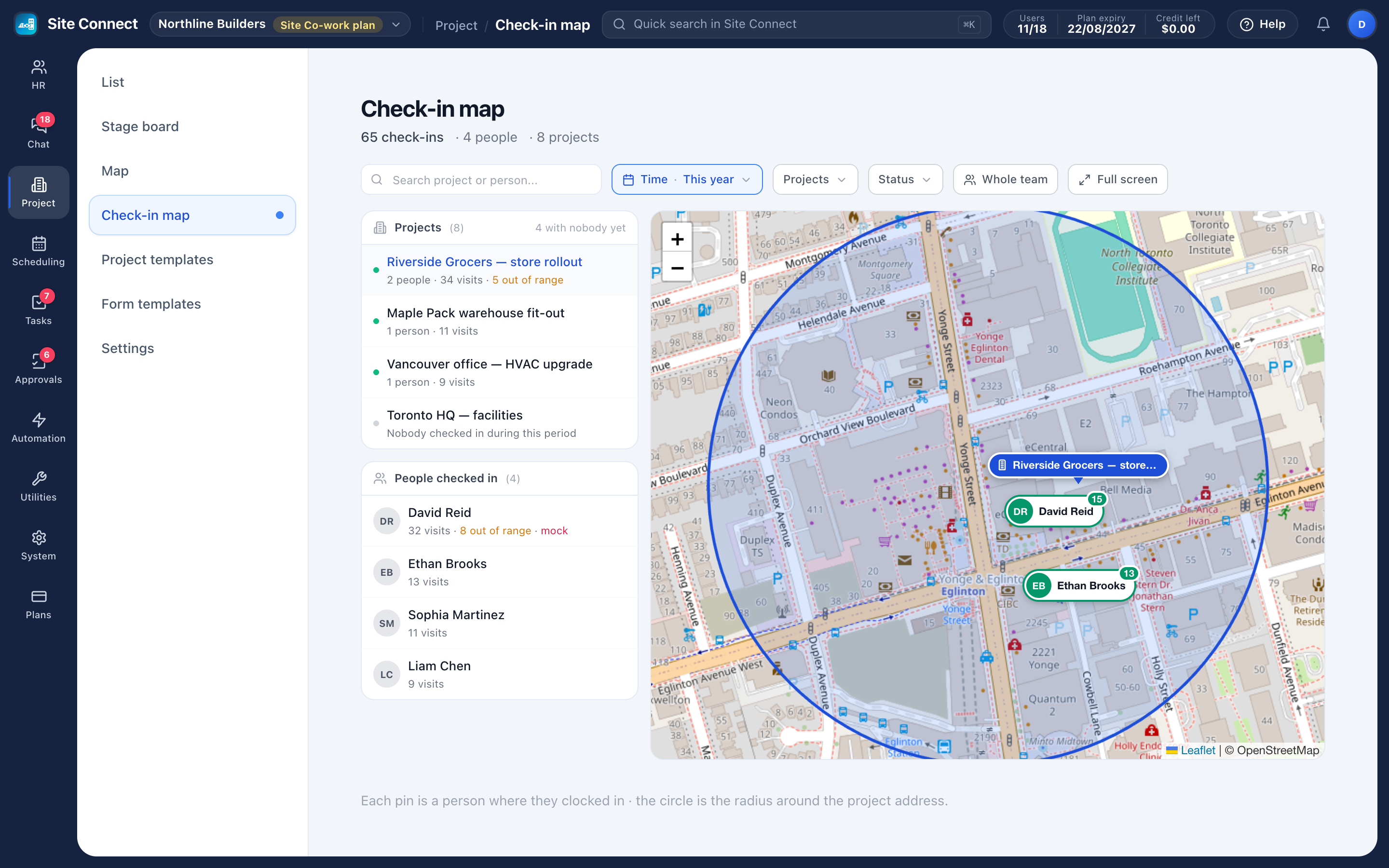
Crews check in on their phone when they arrive at a task, and their hours count from that moment. Every check-in records where the phone was and how far that is from the project address.
Checked against the job site
Each project has its own radius (200 m by default). Choose whether check-ins farther away are recorded with the distance or refused.
Form first, then the timer
If the project asks a check-in form, its required items must be answered before the timer starts.
Forgotten check-outs closed
Turn on auto-close and sessions left open are closed after your working hours, marked so you can review them.
No silent edits
Attendance times can't be edited in the hub. The employee submits a correction and an approver signs it, leaving a trail.
Check-in on the task, at the site
Turn on check-in for a project and every task in it shows a check-in card in the app. The app reads the location, compares it with the project address and starts the timer; checking out stops it. Every visit appears on the task and on the project's Work hours tab.
- Allow or refuse check-ins away from the project address, and require a location
- Limit check-in to the task's dates, or allow any day
- Mock locations are flagged, not blocked
- Check-ins with a location appear on the check-in map
A daily clock-in, if you want one
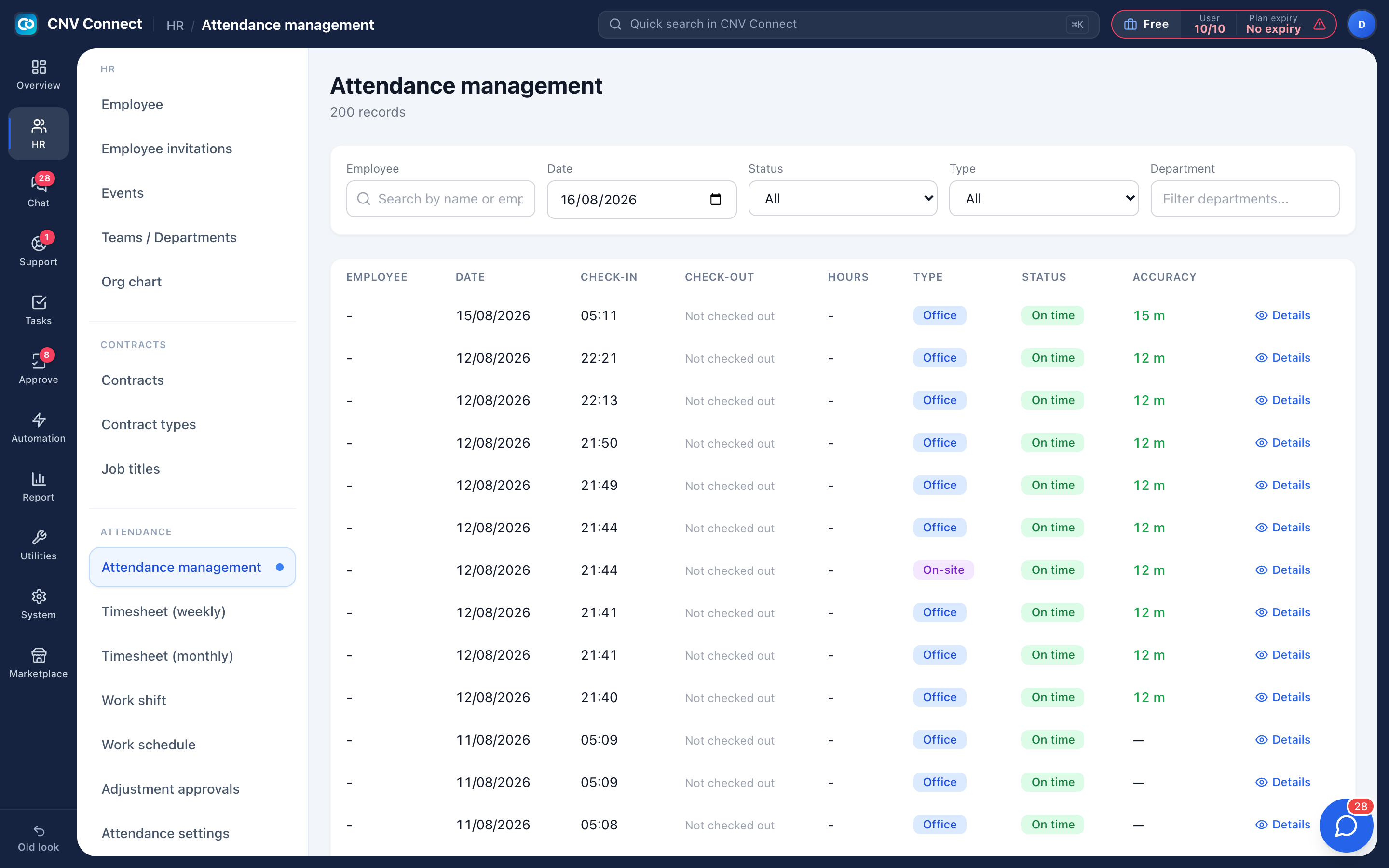
Some companies also track time present for the day. Add the Attendance tab to the app and people clock in and out against your registered locations, with rules you set in layers — company-wide, branch, department, shift or one individual — where the narrowest layer wins.
- Require a photo and/or a location per situation — clocking in or out, inside a location, outside every location, working from home
- Preview exactly what one employee will be asked for on a given day before you roll a change out
- Recalculate past days after a rule change, with a dry run first
- Clock-ins made with no signal are sent later, with the time the button was pressed
Timesheets your payroll team will accept
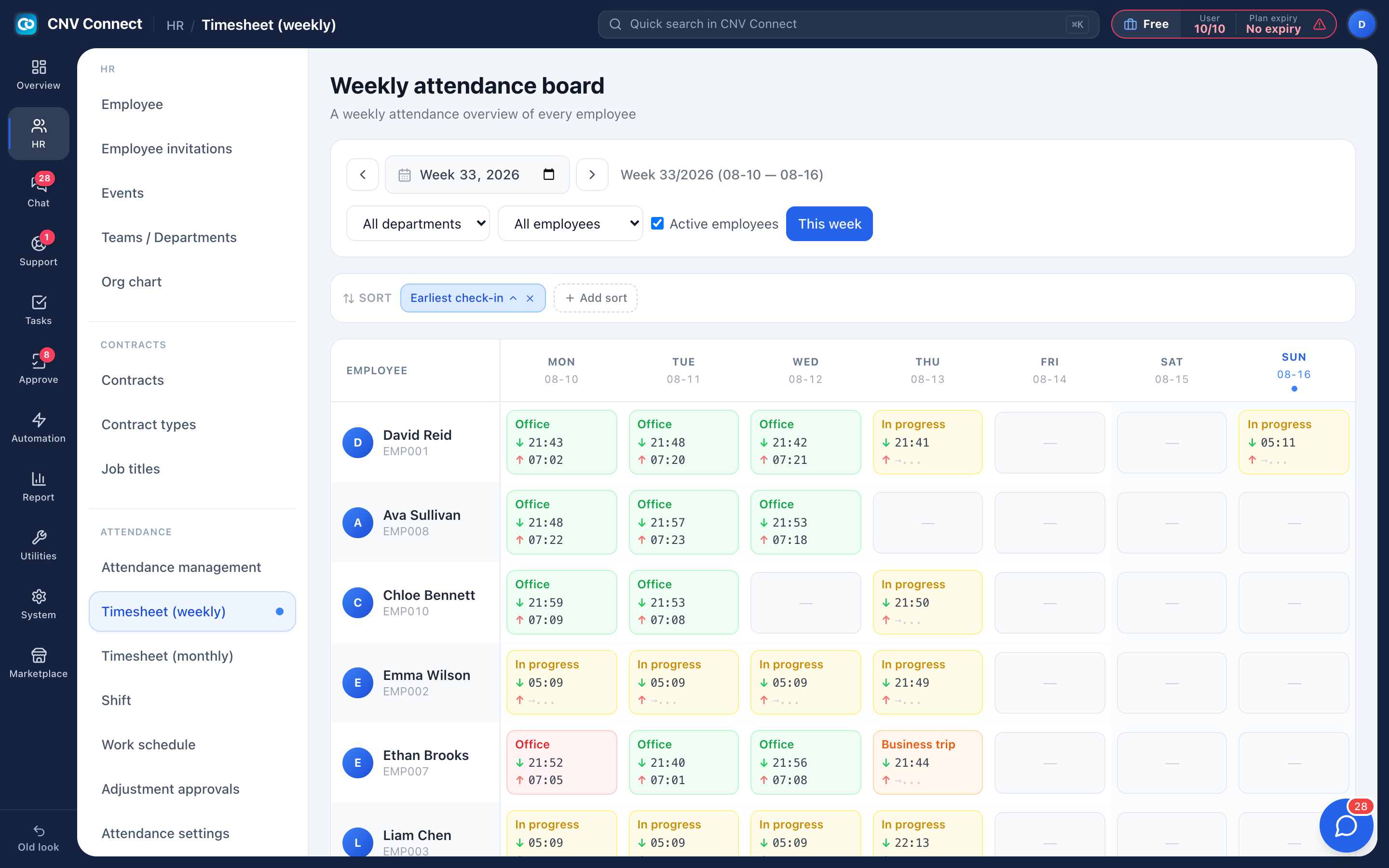
The weekly board shows everybody, Monday to Sunday, with in and out times in each cell. The monthly sheet is the payroll view: a column per day, and summary columns that count leave, holidays and absences. Both are built from daily clock-ins plus approved leave and holidays.
- Export the month to Excel, with a Legend and a Review sheet
- Absences that are neither recorded nor approved stand out before payroll closes
- Approved leave and public holidays fill themselves in
- Late and left-early days without an approved request are marked
How teams set this up
- Create your projects with an address and turn on check-in.
- Add the check-in form your crews must fill in, if any.
- Crews check in and out on the task in the mobile app.
- Review hours on each project's Work hours tab — and on the timesheets if you use the daily clock-in.
Frequently asked
What if GPS is unreliable on site?
Make the radius big enough to cover the site plus a margin for GPS accuracy, which is often 20–100 m on a phone. Every check-in records its distance from the project address.
Can somebody check in for a colleague?
On a scheduled task, only the assigned person can check in. Every check-in is tied to the signed-in account and records the phone's location; for the daily clock-in you can also require a photo.
What happens when a person forgets to check out?
Turn on auto-close in Project settings and forgotten check-ins are closed after your working hours, marked so you can tell them apart.
Does check-in work with no signal?
Task check-in and check-out need a connection. Photos, videos and voice notes taken offline are sent once the signal is back.
Works with
Projects & job sites
A project is a job site: its address, team and stage, the tasks your crew does there, the hours they log when they check in, the photos they take and the money the job brings in.
Forms & checklists
Pre-task safety checks, site handovers and end-of-day sign-offs — built once, filled in on the phone when the crew checks in to or out of a task, and stored with that visit and in the project's Documents.
Scheduling
Plan who works on what, day by day: each row is a person or a project, each card a scheduled task.
Get your whole team on one system this week
SiteConnect Base is free for your first 3 users — no card, no sales call, no migration project.
Free forever for 3 users · then $3 per user a month · no credit card