 Site Connect
Build the week on one board, publish it to phones
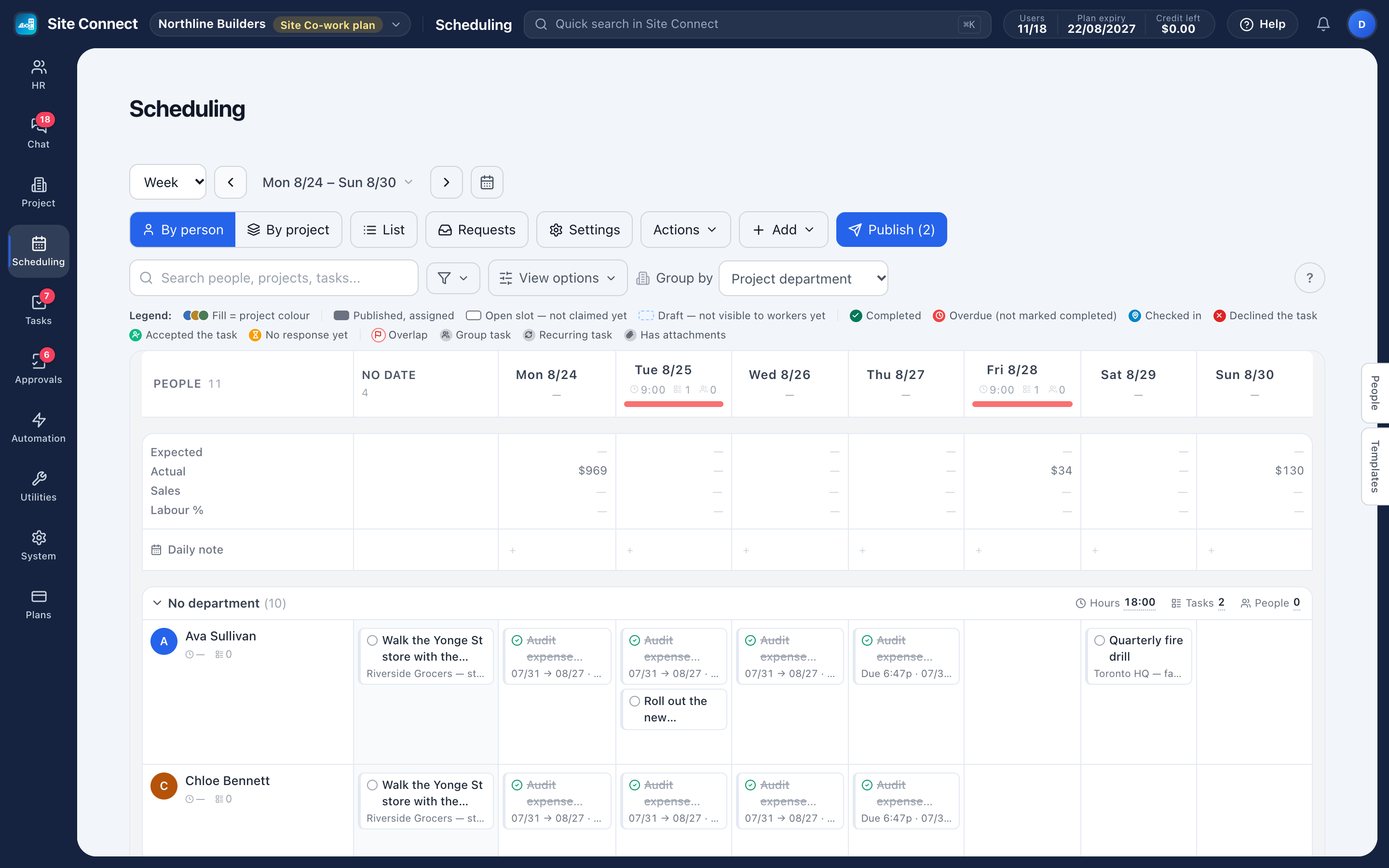
Plan who works on what, day by day: each row is a person or a project, each card a scheduled task. Check the week for problems, publish it, and let your crew take the open slots from their phone.
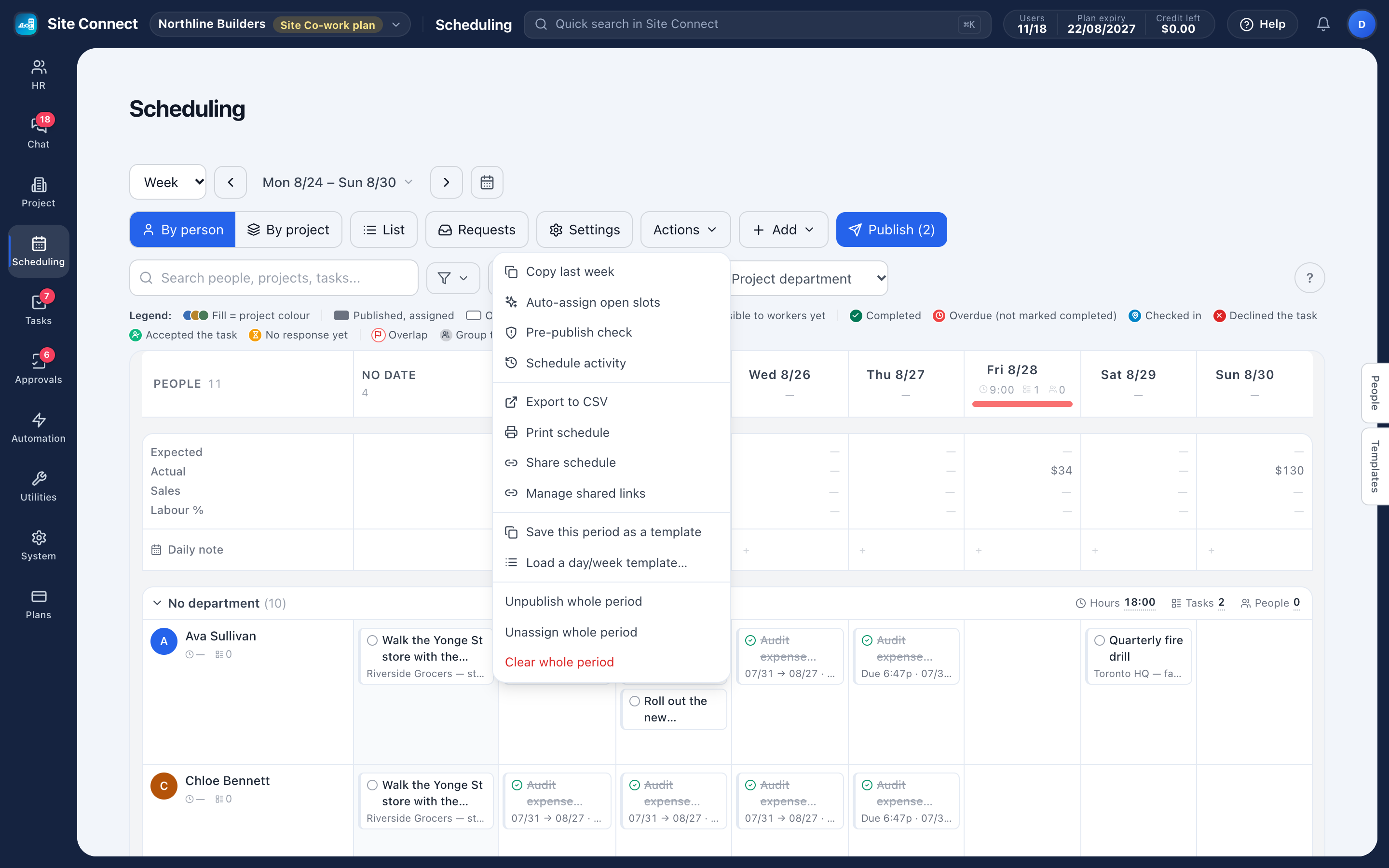
Copy last week
Stable crews take one click; then you adjust only the exceptions.
Drafts, then publish
New tasks are drafts only schedulers see. Publish sends each person their tasks in one message.
Pre-publish check
Overlaps, approved leave, public holidays, long days and job sites far apart — found before anyone is told.
Open tasks
Leave a slot open for claiming and your crew takes it in the app — instantly, or after a manager approves, as you choose.
Plan the week the way you think about it
Rows are people or projects, columns are days, and each card is a scheduled task with its project and time. Drag a card to move it, select several and edit them together, and save a day or a week as a template you can load again.
- Group by project department, employee department or your own schedule groups
- Add tasks one by one, several at a time, or from an Excel file
- Approved leave shows in the person's cell; public holidays are marked on the date
- Labour & sales adds the expected labour cost per day, from each person's rate
Your crew answers from the phone
Each person gets one New work schedule message for their tasks. They accept or decline, check in on the day, and the board shows every answer on the card. Someone who can't make it taps Ask for cover, and a coworker takes the task — with manager approval if you require it.
- Filter to unconfirmed, accepted, declined or no response
- Changing the date, time or job site of a published task tells the person right away
- Share a view-only link with a subcontractor or client, with an expiry date
- Export the view to CSV or print it
How teams set this up
- Set your working hours in Project settings.
- Add tasks to the board, or copy last week.
- Run the Pre-publish check.
- Publish — and leave open slots your crew can take.
Frequently asked
Can employees swap shifts themselves?
Yes. A worker taps Ask for cover on a task; a coworker takes it, with manager approval if you require it.
Do workers see drafts?
No. Drafts are visible only to schedulers; people see their tasks once you publish — unless you choose Publish on create in Project settings.
How far ahead can we plan?
As far as you like — view a day, a week or a month and move forward.
Works with
Time clock & check-in
Crews check in on their phone when they arrive at a task, and their hours count from that moment.
Task management
List, kanban, gantt, calendar and workload — the same tasks, arranged for whoever is looking: the person doing the work, the manager balancing it, the director tracking the deadline.
Mobile app
Everything the crew needs: check in to tasks, fill the check-in form, take photos and voice notes, see the schedule, take open tasks, request leave, chat, and approve on the way to the next job.
Get your whole team on one system this week
SiteConnect Base is free for your first 3 users — no card, no sales call, no migration project.
Free forever for 3 users · then $3 per user a month · no credit card