 Site Connect
The safety paperwork, filed as it happens
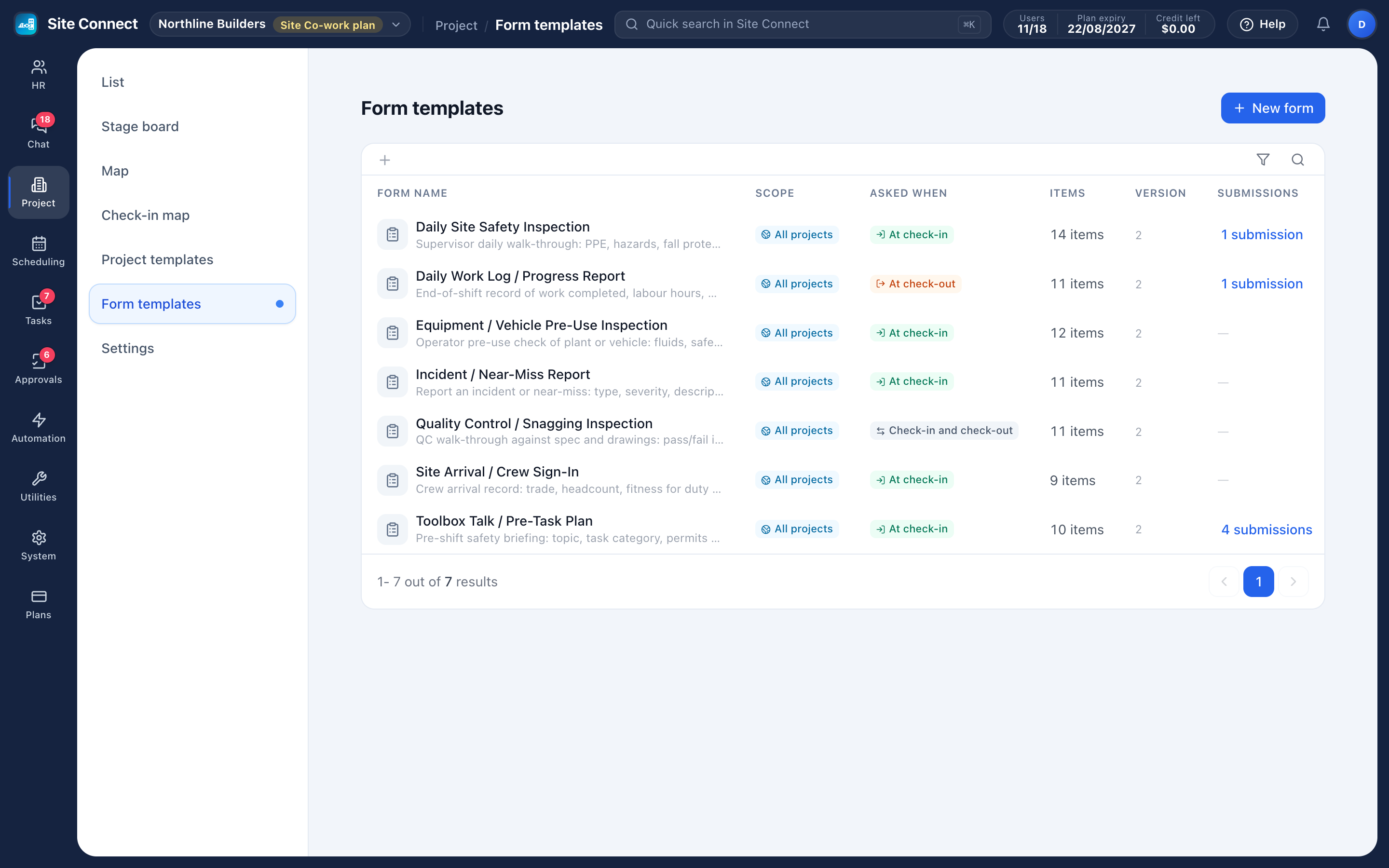
Pre-task safety checks, site handovers and end-of-day sign-offs — built once, filled in on the phone when the crew checks in to or out of a task, and stored with that visit and in the project's Documents.
Build any form
Pass/fail, photo taken on the spot, signature, text, number, yes/no, single choice, date, checkbox and rating items.
Form first, then the timer
Ask a form at check-in, at check-out or both; required items must be answered first.
Per project
Use a form on every project, or only on the projects you pick.
Versioned history
Submissions keep the version of the form used at the time, so an audit shows what was really asked.
Failures stand out
Pass/fail is the item that matters for inspections. When something fails, the visit card on the task says so — "1 item(s) FAILED" — and every answer is one click away, with the time and place of the check-in and the person who submitted it.
- Per-question required answers
- Photos taken on the spot — picking from the gallery isn't allowed
- Signatures drawn on the screen
- Show an item only when another was answered a certain way
Proving it later
Each form keeps a count of its submissions: open them, search by who submitted, and read every answer. Inside a project, the Documents tab lists every submitted form next to the photos, voice notes and files.
- Submitted answers can't be edited afterwards
- Forms brought over from Connecteam keep their questions
- Photos and voice notes taken offline sync later; check-in itself needs a connection
How teams set this up
- Build the form and mark the required items.
- Add it to the project's check-in settings: ask on check-in, on check-out, or both.
- Check it with Preview as staff see it.
- Read submissions per form, or in each project's Documents tab.
Frequently asked
Can we change a form that is already in use?
Yes. Editing creates a new version; past submissions keep the version they were filled in with.
Do photos count against storage?
Yes, and a daily crew photo adds up — the workspace shows storage by module so you can see it.
Can one project ask a form that others don't?
Yes — a form only applies to the projects you choose, at check-in, check-out or both.
Works with
Projects & job sites
A project is a job site: its address, team and stage, the tasks your crew does there, the hours they log when they check in, the photos they take and the money the job brings in.
Time clock & check-in
Crews check in on their phone when they arrive at a task, and their hours count from that moment.
Mobile app
Everything the crew needs: check in to tasks, fill the check-in form, take photos and voice notes, see the schedule, take open tasks, request leave, chat, and approve on the way to the next job.
Get your whole team on one system this week
SiteConnect Base is free for your first 3 users — no card, no sales call, no migration project.
Free forever for 3 users · then $3 per user a month · no credit card