 Site Connect
One backlog, five ways to look at it
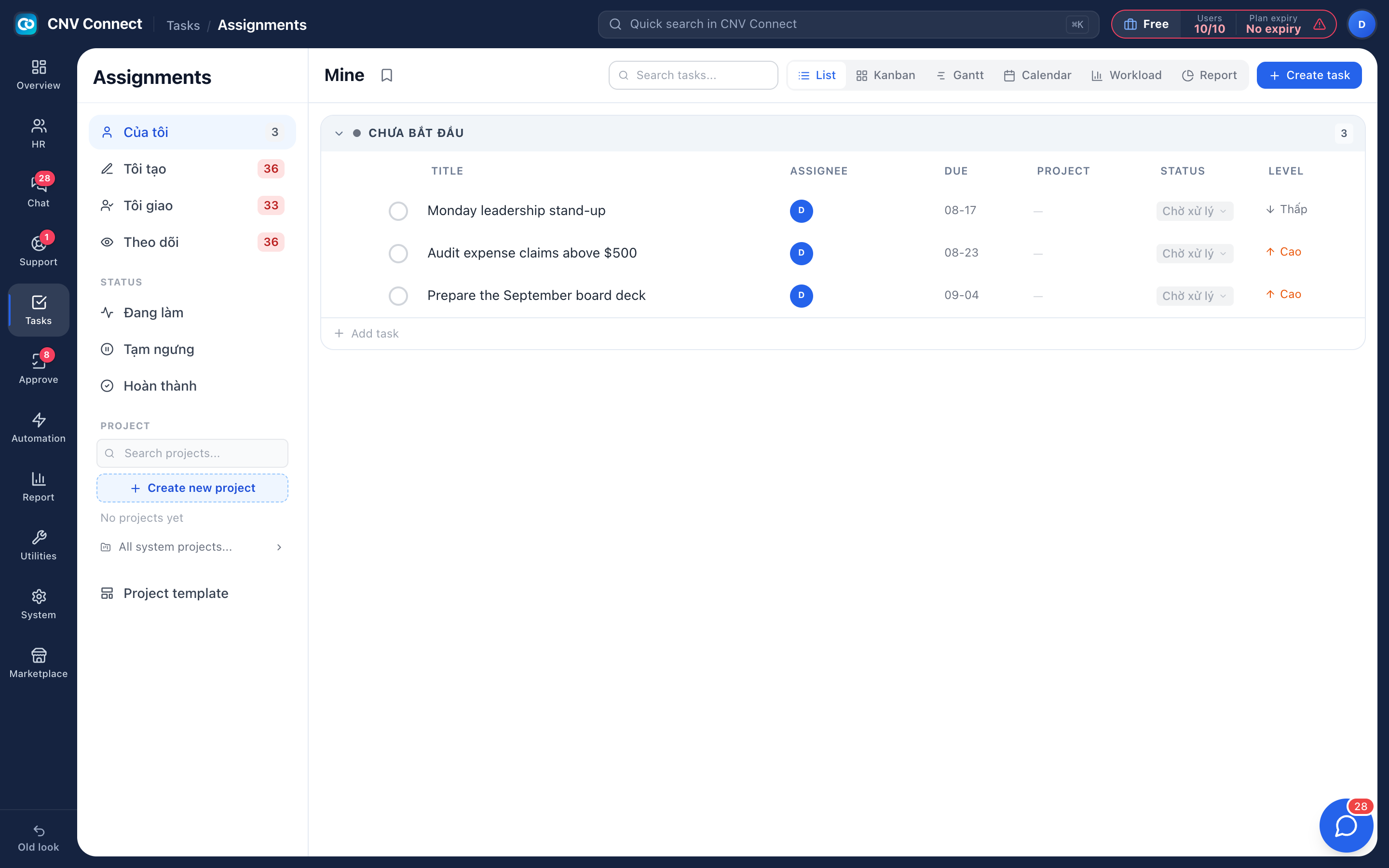
List, kanban, gantt, calendar and workload — the same tasks, arranged for whoever is looking: the person doing the work, the manager balancing it, the director tracking the deadline.
Views, not copies
Switching view never moves data — the filters you set stay applied.
Projects and templates
Group work into projects, start new ones from a template, and set tasks that repeat on a schedule.
Follow without owning
Add yourself as a follower to be notified about a task somebody else is responsible for.
Linked to real work
Create a task from a chat message; it keeps a link back to the message.
A task with everything attached
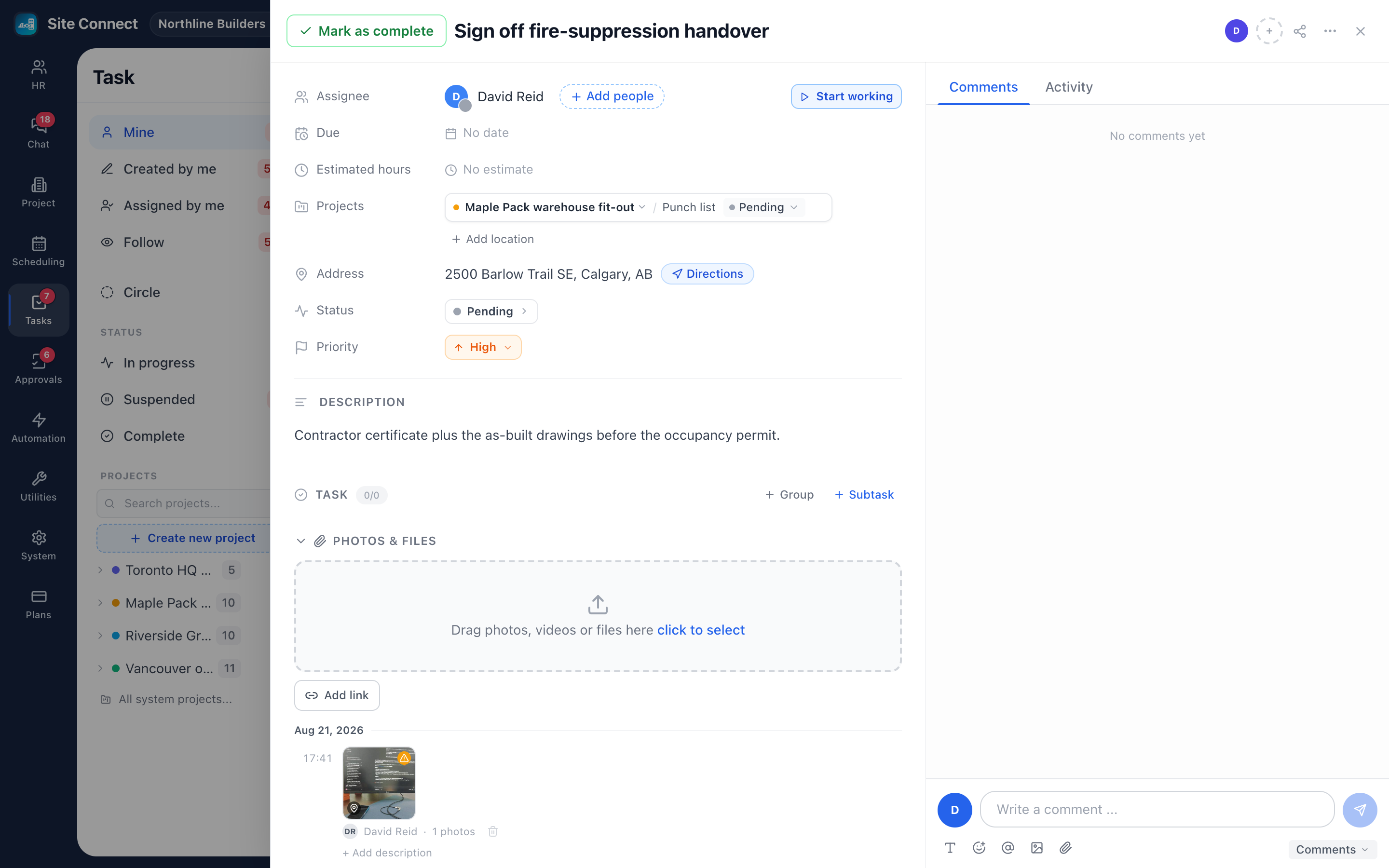
Owner, dates, status, priority, description, subtasks, photos, videos, voice notes and files up to 50 MB, comments with mentions, and an activity trail that shows who changed what. Start working runs a timer, and check-ins on site record the time there.
- Subtasks with groups for larger pieces of work
- Drag and drop attachments, or link to a document elsewhere
- Comments notify the people on the task, not the whole company
- Complete a task from the list without opening it
Photos and voice notes where the work is
Crews take photos and record voice notes on the task from the app. Photos taken in the app are stamped with time and location, can be marked up and tagged, and each project's Documents tab gathers every photo, voice note, file and submitted form. On Site Co-work, voice notes are transcribed by AI.
- Photos flagged for review when taken far from the site, picked from the gallery or sent long after
- Markup is stored on top, so the original photo is never changed
- Browse a project's photos as a grid, a table or on a map
Workload before the deadline slips
The workload view shows one row per person and one column per day: planned hours from each task's estimate, and actual hours from check-ins underneath. The person carrying too much stands out, and reassigning notifies the new owner.
- Statuses are configured per task list, so different processes keep different columns
- Board columns are those statuses — dragging a card changes the status
- Circles split work into fixed periods, like sprints, and carry unfinished tasks over
How teams set this up
- Create a project, or work straight from your own task list.
- Add tasks with an owner and a due date.
- Run the day from the Mine filter.
- Use the workload view weekly to rebalance.
Frequently asked
Is there a limit on projects or tasks?
No. Plans are priced by users, not by the number of projects or tasks.
Can tasks come from other modules?
Yes — from a chat message, from an automation, or from an approval's Assign work step, and they appear in the same lists.
Do we need a separate project tool?
For most operational teams, no. Gantt and calendar cover deadlines; workload covers capacity.
Works with
Projects & job sites
A project is a job site: its address, team and stage, the tasks your crew does there, the hours they log when they check in, the photos they take and the money the job brings in.
Scheduling
Plan who works on what, day by day: each row is a person or a project, each card a scheduled task.
Team chat
Groups for teams and sites, direct messages, files, pinned notices and bots that announce what the other modules are doing — inside the same workspace, on the same accounts.
Get your whole team on one system this week
SiteConnect Base is free for your first 3 users — no card, no sales call, no migration project.
Free forever for 3 users · then $3 per user a month · no credit card